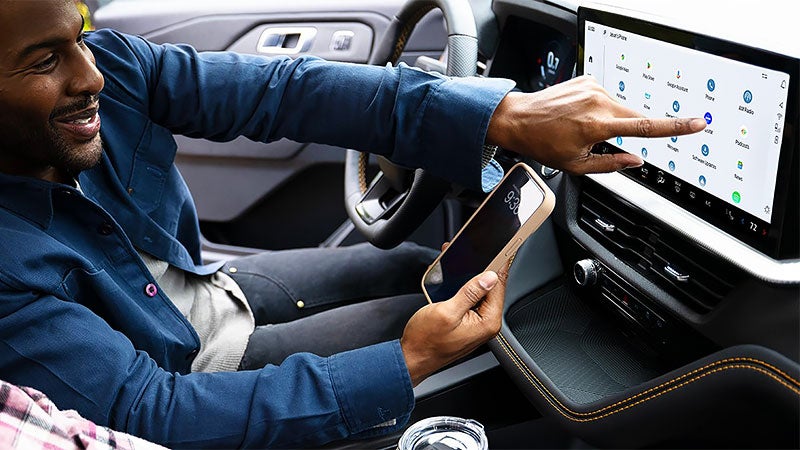
A test drive should show you more than how an SUV accelerates and handles. It should also help you decide whether adjusting the temperature, following directions, and answering a call feel straightforward. The 2027 Ford Explorer technology lineup centers on the Ford Digital Experience, which brings together touchscreen controls, built-in Google features, and smartphone integration. Before heading out from Sunset Ford of Sumner, spend a few minutes parked getting familiar with the functions you’ll use most. Get Comfortable With Both Displays The 2027 Explorer includes a 13.2-inch center touchscreen and a 12.3-inch digital instrument cluster. Each serves a different purpose. The center screen handles navigation, apps, entertainment, and climate settings. The instrument cluster keeps driving information in front of you and can display navigation information supported by the system. Adjust your seat and steering wheel before evaluating either display. Can you read the information comfortably? Can you reach the touchscreen without leaning forward? Ask your sales consultant to demonstrate the steering-wheel controls and show how to change the information displayed in the cluster. As you browse Ford Explorer inventory, remember that equipment beyond the main displays can vary by trim and package. Find the Climate Controls First Learning the climate controls while parked can make your first drive more comfortable, particularly on a rainy Sumner morning. Use the touchscreen to adjust the temperature, fan speed, and airflow direction. Locate the windshield defrost controls and ask how to manage rear-seat climate settings. If the Explorer you’re considering has heated or ventilated seats, try those controls too. Then return to the navigation screen. This simple exercise helps you judge how easily you can move between directions and everyday vehicle settings. Compare Built-In Navigation With Your Phone The Ford Digital Experience includes built-in Google Maps. Try entering a destination, reviewing the route, and canceling guidance before beginning your drive. Ask your consultant to show how navigation information appears in the instrument cluster. Connected functions, including live traffic information, require an internet connection. Their usefulness also depends on network coverage where you drive. Wireless Apple CarPlay and Android Auto compatibility let you access supported smartphone functions through the center display. Bring your own compatible phone and test the connection. Pairing may require permissions for contacts, calls, and other features. Try your preferred navigation and music apps rather than assuming every app works through the vehicle screen. Phone-based services can use your mobile data and may have separate account or subscription requirements. Give Voice Controls a Real Task Voice controls are easier to evaluate with a specific request. Try asking for directions, calling a contact, or changing the cabin temperature. Ask your consultant to demonstrate the steering-wheel voice button and the activation phrase for the selected assistant. Available commands and online responses depend on the assistant, connection, and account setup. Pay attention to whether the system understands your normal speaking voice. Being comfortable with a few useful commands can reduce the need to navigate touchscreen menus while driving. Understand Connectivity and Subscription Requirements The 2027 Explorer lists a Ford Connectivity Package with one year included. The package supports connected services such as in-vehicle internet access and streaming. Confirm the activation requirements, included period, and options for continued service on the specific vehicle you’re considering. Some apps require their own accounts or paid subscriptions. SiriusXM service also has separate subscription terms after its included trial. A compatible phone hotspot can provide an alternative connection for supported Ford Digital Experience functions, although mobile data limits and coverage still apply. Basic climate operation does not require a paid connectivity subscription. Your Parked Test-Drive Checklist Before shifting into drive: Pair your phone and test a call or audio connection. Adjust temperature, fan speed, and windshield defrost. Enter a destination and cancel the route. Try a voice command for navigation or cabin temperature. Change the instrument-cluster view. Switch between smartphone integration and built-in functions. Confirm connectivity terms and any separate app subscriptions. Once those tasks feel familiar, you can concentrate on visibility, comfort, and handling. Schedule a test drive at Sunset Ford of Sumner and bring your phone so you can see how the Explorer fits your daily routine.